Getting Started
Creating an Account
- Click the "Sign In" button at the top center of the screen.
- Click "Sign up" at the bottom of the form.
- Fill in your details:
- Email — Your email address.
- Username — A unique username (3–20 characters).
- Password — At least 10 characters. Must include uppercase, lowercase, number, and symbol.
- Click "Create Account".
- Your wallet will be created automatically.
Tip: A Radiant wallet is generated for you upon registration. This is where your RXD funds are stored.
Logging In
- Click the "Sign In" button.
- Enter your email and password.
- Click "Sign In".
Logging Out
Click your username in the top-right corner, then click "Log Out".
Painting Pixels
How to Place a Pixel
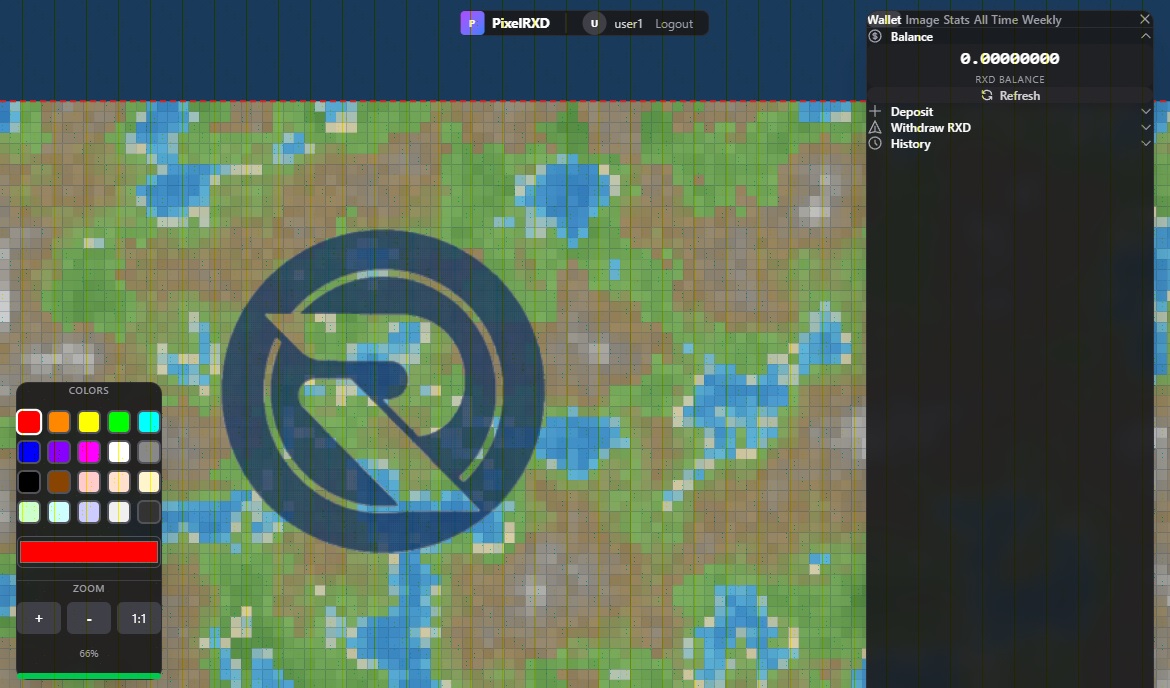
- Select a color from the palette at the bottom of the screen.
- Left-click on any empty spot on the canvas to place a pixel.
- You'll see a small confirmation that your pixel was placed.
Cooldown
After placing a pixel, you must wait a few seconds before placing another. This ensures fair play for everyone.
Pixel Cost
Each pixel costs 0.10 RXD. Your balance is deducted automatically.
Treasures
Some pixels are hidden treasures! Paint over one and you'll receive a free RXD reward sent directly to your wallet.
Navigating the Canvas
Zoom In / Out
Use your mouse wheel to zoom (20% to 2000%).
Pan (Move Around)
Right-click and drag to pan around the canvas. On mobile, use one finger to drag.
Your Wallet
Access your wallet by clicking the "Wallet" tab in the sidebar.
Check Your Balance
Click "Refresh" to update your balance.
Deposit RXD
- Open the "Deposit" section in the Wallet tab.
- You'll see your wallet address and a QR code.
- Send RXD to this address from any Radiant wallet or exchange.
- The deposit will appear once confirmed on the blockchain.
Tip: Click the copy icon next to your address to copy it to your clipboard.
Withdraw RXD
- Open the "Withdraw RXD" section.
- Enter the destination address.
- Enter the amount in RXD.
- Click "Withdraw RXD".
View Transaction History
Open the "History" section to see paint payments, withdrawals, treasure rewards, and blockchain deposits. Use Prev / Next to browse pages.
Image Overlay & Shared Guides
Load an image as a painting guide on the canvas.
Loading an Image
- Go to the "Image" tab in the sidebar.
- Drag and drop an image or click to select one.
- Adjust settings:
- Pixel Size — Size of each pixel block (1–10).
- Opacity — Transparency of the overlay (0–100%).
- Scale — Size on canvas (10–500%).
- Toggle "Show overlay" to show or hide the image.
Moving the Overlay
- Click "Move Overlay" to enter move mode.
- Hold Shift and drag on the canvas to reposition.
- Click "Dragging..." to exit move mode.
Sharing Your Guide with Others
- Upload your image and position it where you want.
- Click "Share Guide" (login required).
- A link will be copied to your clipboard.
- Share this link — they'll see the same overlay in the same position.
Note: You can share up to 10 guides per day. Links expire after 24 hours.
Stats
The "Stats" tab shows:
Total Pixels
Pixels painted by everyone.
Total Users
Registered users.
Online
Users currently connected.
Your Pixels
Pixels you've placed.
Rankings
- All Time — Top painters of all time.
- Weekly — Top painters this week.
Note: Admin accounts are hidden from rankings for regular users.
Frequently Asked Questions
Q: How much does a pixel cost?
A: 0.10 RXD per pixel.
Q: Where do I get RXD?
A: Buy RXD on supported exchanges (CoinEx, MEXC) and send it to your wallet address, or receive it from another user.
Q: I placed a pixel but it disappeared.
A: Another user may have painted over it. The canvas is shared — anyone can paint anywhere.
Q: I ran out of RXD. Can I still use the app?
A: You can still browse the canvas, but you need RXD to place new pixels.
Q: What are treasure pixels?
A: Some pixels are hidden treasures. Paint over one and receive a free RXD reward!